



What Is Crawlability? Why It Matters for Your Business
Crawlability issues effect your website’s ability to be found by Google’s crawler. Think of it like this. Imagine your business is located on a street with no signs, no address, and no roads leading to it. Regardless of the fact that your storefront is beautiful, nobody can find you. The same thing is what happens online when your pages aren’t crawlable. This information applies to pretty much all search engines not just Google.
Search engines use automated bots called “crawlers” to explore websites. They follow links from page to page, reading your content. They must be able to access your pages. However, if they can’t find it, your content never gets indexed. As a result if it’s not indexed, it won’t appear in Google search results—no matter how good it is.
Without crawlability, you lose organic traffic. You lose potential customers. You lose sales.

How Search Engine Crawlers Actually Work
Google’s crawler, called Googlebot, visits your website regularly. It starts at your homepage and follows internal links to discover other pages. As it crawls, it collects information about your content, structure, and site health.
This process happens in three steps:
Step 1: Discovery
Googlebot finds your page through internal links, your XML sitemap, or arrives at your site from a link it found on some other page on the web.
Step 2: Crawling
Googlebot downloads your page’s HTML and analyzes the code, text, and links.
Step 3: Indexing
Googlebot adds qualifying pages to Google’s index so they can appear in search results.
If crawling fails at step one or two, step three never happens. Your page stays invisible.
12 Crawlability Issues Blocking Your Pages (And How to Fix Them)
There are a few really obscure unique problems that can exist within a website that are difficult to explain. These can also cause disruptions when crawling a site. However, they are extremely rare so we’ve taken 12 of the most common issues to check first.
If after checking your site and none of these issues seem to be a problem, it may be that you will need to do a more in depth analysis.
Issue #1: Robots.txt is Blocking Important Pages
Your robots.txt file is a text file in your website’s root directory. It tells crawlers which pages to visit and which to skip.
The Problem: Many business owners accidentally block important pages in robots.txt. A developer might add Disallow: / during testing and forget to remove it. Then suddenly, your entire site is invisible to Google. We have seen developers bring down entire sites in just one week after forgetting to remove a disallow tag.
The Fix:
- Check your robots.txt file at yoursite.com/robots.txt
- Look for Disallow: rules blocking important sections
- Use Google Search Console’s robots.txt tester tool
- Remove or modify problematic rules
- Test using “Fetch as Google” to verify access
This is an example of a robot text file for a staging site. These are testing sites and the code keeps the site “hidden” and prevents indexing by the search engine. This is generally a good thing, as you would not want clones of your live site being included in search results.
User-agent: *
Disallow: /
The “/” after disallow means everything. So the search crawler is being instructed to ignore everything
Default Live Site robots.txt
For a site created as a live site, such as this WordPress site, the default robots.txt file allows indexing:
User-agent: *
Disallow: /wp-admin/
Allow: /wp-admin/admin-ajax.php
Sitemap: [URL]/wp-sitemap.xml
In addition it tells the crawler where to find the sitemap.
Issue #2: Noindex Tags Hiding Your Pages
A noindex meta tag tells Google not to index a page, even if the crawler can access it.
The Problem: Plugins, templates, or old settings sometimes add noindex tags by accident. You publish a page expecting to rank, but Google skips it silently.
Real Example: A Rio Grande Valley medical practice created a detailed “services” page. Their WordPress SEO plugin was misconfigured and added noindex to all pages by default. The page was crawled but never indexed. They got zero search traffic for weeks before discovering the issue.
The Fix:
- Check pages in Google Search Console’s URL Inspection tool
- If it says “Discovered – currently not indexed,” click “Why?” for the reason
- Check your page’s HTML source (right-click → View Page Source)
- Search for <meta name=”robots” content=”noindex”>
- Remove the noindex tag from your page settings
- Request indexing in Google Search Console
- Check your SEO plugins—they might be adding it automatically
Issue #3: Internal Links Are Broken or Missing
Broken internal links create dead-ends for crawlers. If a page has no links pointing to it, Google might not find it at all.
The Problem: When you delete a page or change its URL without redirecting, links become broken. Your crawler gets stuck and can’t reach other content.
The Fix:
- Use a crawler tool like Screaming Frog to find broken links
- For deleted pages: set up 301 redirects to relevant alternatives
- For moved pages: update all internal links to point to new URLs
- Ensure important pages are linked from your homepage or main navigation
- Create a logical hierarchy—keep pages within 3 clicks of your homepage
- Add internal links within blog content to related pages
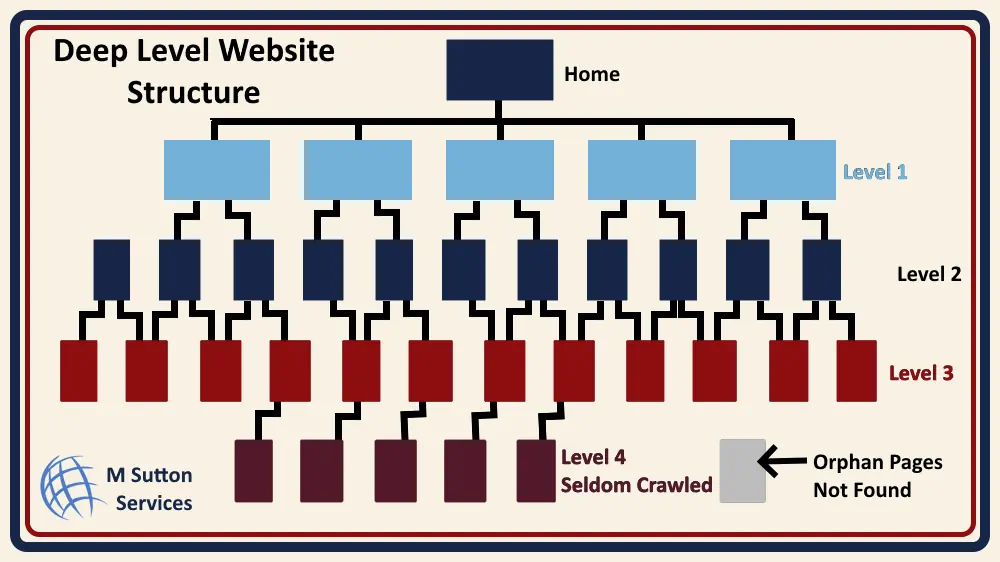
Issue #4: Your Site Structure is Too Deep
If important pages are buried too deep in your site structure crawlers might not reach them.
The Problem: Sites with poor architecture force crawlers to follow many links to reach content. Google allocates a “crawl budget”—limited time and resources for each website. Deep structures waste this budget.
Real Example: A large Brownsville restaurant group built separate sites for multiple locations. Some location pages were 6 clicks deep: Home > Locations > State > City > Location Name > Menu. Google crawled the main pages but never reached the menu pages. Local search rankings suffered.
The Fix:
- Keep important content within 2–3 clicks from your homepage
- Use consistent navigation menus linking to key sections
- Avoid excessive category levels (no more than 3–4 deep)
- Link high-priority pages from multiple locations
- Use breadcrumb navigation to show site structure
- Submit an XML sitemap listing all important pages
Issue #5: XML Sitemap is Missing, Outdated, or Misconfigured
An XML sitemap is a file listing all your pages. It helps crawlers find content they might otherwise miss.
The Problem: Many sites lack sitemaps or have outdated ones. Deleted pages remain listed. New pages don’t appear. Crawlers don’t know the site’s structure.
The Fix:
- Install a WordPress plugin (Yoast SEO, RankMath, Google XML Sitemaps) if using WordPress
- If not using WordPress, hire a developer to generate a sitemap
- Include all important pages (exclude login pages, admin areas, duplicates)
- Submit the sitemap to Google Search Console and Bing Webmaster Tools
- Check your sitemap’s status in Google Search Console monthly
- Verify that deleted pages are removed from the sitemap
Issue #6: 404 Errors Are Frustrating Crawlers
A 404 error means a page doesn’t exist. Too many 404 errors confuse crawlers and waste crawl budget.
The Problem: When you delete pages without redirecting, or when links point to typos, crawlers hit 404 errors. The crawler leaves, unable to continue deeper into your site.
Real Example: A Rio Grande Valley based e-commerce store went through a product redesign. Old product pages were deleted without redirects. Thousands of external links and old internal links pointed to dead pages. Crawlers hit 404 errors and couldn’t reach the rest of the site. Ranking dropped 40% in a month.
The Fix:
- Audit your site for 404 errors using Google Search Console (Pages report)
- For deleted pages: set up 301 redirects to the most relevant replacement
- For outdated URLs: redirect to current versions or homepage if no alternative exists
- Create a custom 404 page that links users and crawlers to important content
- Fix broken links in your content (find them with Screaming Frog)
- Monitor Search Console monthly for new 404 errors
Issue #7: Server Errors (5xx) Are Blocking Access
5xx errors mean your server can’t fulfill the request. Common ones include 500, 502, 503, and 504 errors.
The Problem: If your server is down, overloaded, or misconfigured, Google’s crawler gets blocked. If this happens repeatedly, Google reduces crawling frequency. You lose index updates and ranking opportunities.
The Fix:
- Monitor your server uptime with tools like Uptime Robot or Pingdom
- Check Google Search Console’s “Coverage” report for server error patterns
- Work with your hosting provider to handle traffic spikes (upgrade server capacity)
- Optimize your site speed to reduce server load (compress images, minify code)
- Set up a content delivery network (CDN) to distribute traffic
- Configure proper error handling so crawlers get clear response codes
- Monitor Google Search Console weekly for server issues
Issue #8: JavaScript Content Isn’t Being Rendered
Modern websites use JavaScript to load content dynamically. But Google’s crawler might not see this content if it’s loaded after the initial HTML.
The Problem: Critical content only appears after JavaScript runs. The crawler sees a blank page or incomplete content. That content doesn’t get indexed.
Real Example: A Rio Grande Valley SaaS company built their website using a JavaScript framework. Product features, pricing, and testimonials all loaded via JavaScript. Google’s crawler saw mostly empty pages. The site ranked for brand terms only—not commercial keywords. They couldn’t attract customer traffic.
The Fix:
- Ensure critical content (headings, body text, navigation) is in initial HTML
- Use Google Search Console’s URL Inspection tool to see how Google renders your pages
- Compare “HTML” vs. “Screenshot” to spot differences
- Use server-side rendering or pre-rendering tools if JavaScript is necessary
- Test with “Fetch as Google” to see what crawlers actually see
- Consider restructuring to use less JavaScript for main content
Issue #9: Duplicate Content is Confusing Crawlers
Duplicate content means multiple pages with identical or very similar content. This confuses crawlers about which version to index and rank.
The Problem: E-commerce sites often have the same product in multiple categories. CMS platforms create duplicate tag pages. These duplicates dilute ranking signals and waste crawl budget.
Real Example: A San Antonio furniture store had a couch listed in multiple categories: “Modern Furniture,” “Living Room,” and “Under $2000.” Each category created a duplicate product page. Google didn’t know which to rank. None ranked well. Sales suffered. It was found that an in house product listing administrator had mistakenly removed canonical settings and made pages appear duplicate.
The Fix:
- Identify duplicate content using SEO audit tools (Semrush, Ahrefs, Screaming Frog)
- Use canonical tags to point to the preferred version: <link rel=”canonical” href=”https://example.com/preferred-page”/>
- Implement 301 redirects from duplicate versions to the original
- Use noindex tags on duplicate versions if they must exist
- Set preferred domain (www vs. non-www) in Google Search Console
- Use URL parameters settings in Google Search Console for dynamic URLs
- Consolidate thin, duplicate content into one comprehensive page
Issue #10: Slow Page Speed is Wasting Your Crawl Budget
It is important to remember that there are billions indexed and millions that need to be crawled. Every new page, every new link, causes the crawler to duplicate itself and spend time crawling that connection. These crawlers allocate limited time and resources (crawl budget) to each website. Slow pages consume more budget and reduce how many pages get crawled.
The crawlers have a job to do. They have been given a mission and they do not wait for slow web pages to load.
The Problem: Sites with 5-10 second load times crawl slower. Crawlers time out before finishing. New content and updates take longer to appear in search.
The Fix:
- Test your speed with Google PageSpeed Insights or GTmetrix
- Compress and optimize all images (use WebP format when possible)
- Minify CSS, JavaScript, and HTML files
- Enable browser caching (cache static files for 30+ days)
- Use a Content Delivery Network (CDN) to serve files from servers closer to users
- Lazy-load images (load only when visible)
- Remove or defer non-critical JavaScript
- Upgrade hosting if your server is slow
- Aim for 3-second load time or faster
Issue #11: Orphan Pages Have No Links Pointing to Them
Orphan pages are pages with zero internal links. Without links, crawlers can’t discover them. (See diagram in Issue #4 above)
The Problem: You create a landing page, resource guide, or FAQ page but forget to link to it. Google never finds it. It stays invisible forever.
Real Example: A McAllan HVAC company created an excellent guide: “10 Signs You Need New HVAC.” They published it but didn’t link to it from any page. Google discovered it through the sitemap but crawled it rarely. It got zero organic traffic for a year until they linked to it from relevant blog posts.
The Fix:
- Audit for orphan pages using Google Search Console (Pages report) and look for items without inbound links
- Link these pages from relevant content (context matters—don’t link random pages)
- Add them to your main navigation if they’re important
- Link from multiple pages for high-priority content
- Ensure they appear in your XML sitemap
- When creating new pages, link to them before publishing
- Create a best practices checklist: “New pages must have at least 2 internal links”
Issue #12: Redirect Chains are Wasting Crawl Budget
A redirect chain happens when Page A redirects to Page B, which redirects to Page C. Each hop wastes crawl budget and confuses crawlers.
The Problem: Crawlers follow up to 5 redirects before giving up. Long redirect chains cause timeouts. Some pages don’t get indexed. Some pages lose ranking signals.
The Fix:
- Audit redirects using Screaming Frog or site audit tools
- Keep redirects direct—no chains longer than 2 hops
- Point old URLs directly to final destinations
- Document all redirects so team members understand where they go
- When migrating sites, do a batch redirect update (don’t chain redirects)
- Use Google Search Console to monitor redirect patterns
- Test key redirects monthly to ensure they work
How to Check if Your Pages Are Being Crawled
You don’t have to guess. Use these free and paid tools to see exactly what Google sees.
Google Search Console (Free)
Google Search Console is the most important tool. It shows you:
- Which pages are indexed
- Which pages are found but not indexed (and why)
- Crawl statistics and errors
- Exact status of individual URLs
How to Use It:
- Go to Google Search Console
- Select your property
- Check “Pages” report under Indexing to see status
- Use URL Inspection tool to check individual pages
- Check “Coverage” report to spot errors
- Review “Core Web Vitals” to check page experience
Google’s Fetch and Render Tool (Free, inside Search Console)
This tool simulates how Google’s crawler sees your page.
How to Use It:
- In Google Search Console, go to URL Inspection
- Enter a URL
- Click “Test live URL”
- Compare HTML content vs. rendered screenshot
- Look for missing content, broken images, or JavaScript issues
Screaming Frog SEO Spider (Paid, but worth it)
This tool crawls your entire site like a search engine would. It’s excellent for finding broken links, missing tags, orphan pages, and more.
What It Shows:
- All internal and external links
- Response codes (200, 404, 5xx)
- Page titles and meta descriptions
- Robots.txt and noindex tags
- Redirect chains
- Duplicate content
Crawlability vs. Indexability: Know the Difference
These terms are confused often. They’re not the same.
Crawlability = Can Google find and read your page? Indexability = Can Google add your page to search results?
A page can be crawlable but not indexable. For example:
- Page has no robots.txt block (crawlable) ✓
- Page has a noindex tag (not indexable) ✗
Both must be working for search visibility. In some situations you may want Google to be able to crawl a page (links and ranking) but not index the page. Crawlers will find the page, crawl the links to other pages but not index that page.
Rio Grande Valley Business Case Study: How Crawlability Issues Killed Local Rankings
A Mission dental practice was losing patients. Their website ranked well for “dentist near me” searches in 2022, but rankings dropped 60% by 2024.
The Crawlability Problems We Found:
- Their site migration (2023) didn’t redirect old URLs properly (redirect chains)
- Patient testimonial pages had noindex tags (left over from testing)
- Their robots.txt had Disallow: /patient-info/ blocking important content
- No internal links between service pages
- Poor site structure made it hard for crawlers to find location pages
What We Fixed:
- Cleaned up all redirects into direct, single-hop redirects
- Removed noindex tags from public pages
- Updated robots.txt to allow all public content
- Added contextual internal links between related services
- Restructured site so all location pages were 2 clicks from homepage
Results (3 months later):
- Crawl frequency increased 300%
- All location pages indexed (previously 40% weren’t)
- Rankings recovered to previous levels
- Organic patient inquiries up 85%
The point here being that crawlability isn’t optional. It’s foundational to SEO success.
Your Crawlability Action Checklist
Before publishing any new page, run through this checklist:
Link & Discovery:
- [ ] Page is linked from at least one other page (preferably 2–3)
- [ ] Page is included in XML sitemap
- [ ] Navigation makes sense and page is within 3 clicks of homepage
Technical Requirements:
- [ ] Page loads in under 3 seconds
- [ ] No noindex or robots.txt block is applied
- [ ] No redirect chains (direct to final destination)
- [ ] Server returns 200 OK response
- [ ] No duplicate content of this page exists
Content Quality:
- [ ] Page has unique, original content (no duplicates)
- [ ] At least 300+ words of meaningful text (more is better)
- [ ] Headings and structure are clear
- [ ] Images are compressed and optimized
After Publishing:
- [ ] Submit to Google Search Console via URL Inspection
- [ ] Monitor Search Console for crawl errors (first 2 weeks)
- [ ] Check that page appears in Google Index (use “site:” search)
Following these best practices we have seen pages indexed in as little as two hours after submission, although not common it does happen, especially on sites that post new content regularly.
Frequently Asked Questions About Crawlability Issues
Q: How often does Google crawl my website?
It depends on your site’s authority and popularity. High-authority sites get crawled multiple times daily. Smaller sites might be crawled weekly or monthly. Sites with crawlability issues get crawled less frequently.
Q: Can I increase my crawl budget?
Indirectly, yes. A crawl budget increases when you have fewer crawlability issues and better site structure. By fixing errors and speeding up pages, Google allocates more crawl resources to your site.
Q: Does crawler access to images affect rankings?
Images aren’t ranked directly, but they contribute to page quality. Ensure images load properly and aren’t blocked by robots.txt. Use descriptive alt text.
Q: How long after fixing crawlability issues will I see ranking improvements?
Google needs to recrawl and re-index your pages. This typically takes 1–4 weeks. Major fixes might show results in weeks; smaller improvements take longer.
Q: Can too many 404 errors hurt my overall site ranking?
Yes. Excessive 404s waste crawl budget and signal poor site maintenance. Keep 404 errors below 1% of your pages. Fix or redirect deleted pages.
Q: Do I need a separate sitemap for images and videos?
No, one XML sitemap is sufficient for most sites. If you have hundreds of images or videos, separate sitemaps can help. Submit all sitemaps to Google Search Console.
Q: Is mobile crawlability different from desktop?
Google now crawls mobile-first. Ensure your mobile site is fully functional. Use mobile-responsive design, not a separate mobile domain.
Q: How do I know if JavaScript is hurting my crawlability?
Use Google Search Console’s URL Inspection tool. Compare HTML source to rendered screenshot. If they’re very different, JavaScript might be hiding content.
Q: Should I use noindex or robots.txt to block pages?
Use robots.txt for areas of your site you don’t want crawled (staging, duplicate versions, admin areas). Use noindex for pages that should be crawled but not indexed (private pages, thank-you pages). Use both for maximum safety.
Getting Help: When to Hire an SEO Expert
Fixing crawlability issues requires technical knowledge. If you’re struggling, consider hiring help.
Get Professional Help If:
- Your website lost 30%+ organic traffic suddenly
- You have 100+ uncrawled or unindexed pages
- Your developer keeps making crawlability mistakes
- You completed major site changes (migration, redesign) and need verification
- You use complex technologies (JavaScript frameworks, PWA) that affect crawlability
Why Rio Grande Valley Businesses Choose M Sutton Services: The Rio Grande Valley is highly competitive for local search. Dentists, real estate agents, home services, and retailers all compete for visibility. Crawlability mistakes cost these businesses money. M Sutton Services’ SEO professionals identify and fix issues quickly, helping local businesses reclaim their rankings and market position.
Final Takeaway: Crawlability Comes First
Here’s the truth: Great content, backlinks, and design don’t matter if Google can’t find your pages.
Crawlability is the foundation of SEO. Fix it first. Everything else builds on top of it.
Your action steps:
- Check Google Search Console’s Coverage report today
- Fix any blocking issues you find (robots.txt, noindex, redirects)
- Ensure important pages are properly linked
- Monitor your site monthly
Your Rio Grande Valley business deserves to be found in Google search. Crawlability is how you make that happen.
Ready to Fix Your Crawlability Issues?
Crawlability problems can destroy your organic traffic. If you’re seeing fewer page impressions in Google Search Console or lower rankings with no clear reason, crawlability issues might be to blame.
We help Rio Grande Valley businesses identify and fix technical SEO problems that are blocking their success. Whether you’ve lost rankings, launched a new site, or just want peace of mind—we can help.
Don’t waste another month losing search visibility.
Contact us today for a free crawlability audit and get a clear roadmap to improve your site’s visibility in Google search.